Introduction
Overview
Analysis of lipidomic data involves complex lipidome analysis. Lipidomics analysis across large sample sizes produces large datasets that require dedicated lipid identification, quantification and lipidome visualization. The wide diversity of native lipids and their modifications make their analyses challenging. Lipidomics Visualization Dashboard allows you to visualize, process and analyze the lipid species or classes concentration data. The current version supports the output from SCIEX LipidyzerTM Platform. It can calculate summary statistics, percentages and perform univariate analysis like ANOVA, Limma t-test along with Multivariate analysis like PCA. It helps you view lipids by their main class, sub class across cohorts. includes complex lipidome analysis
Scope of the app
- Processes the output file of SCIEX LipidyzerTM Platform.
- Calculates lipid species concentration percentage for each lipid class across multiple cohorts.
- Plots the lipid class concentrations and their percentages in the form of pie charts and bar plots.
- Performs PCA for quality check.
- Performs differential expression using ANOVA or Limma t-test to find significant lipid species or class.
Getting Started
User Input
Lipidomics analysis requires the following two files as input:
Concentration File
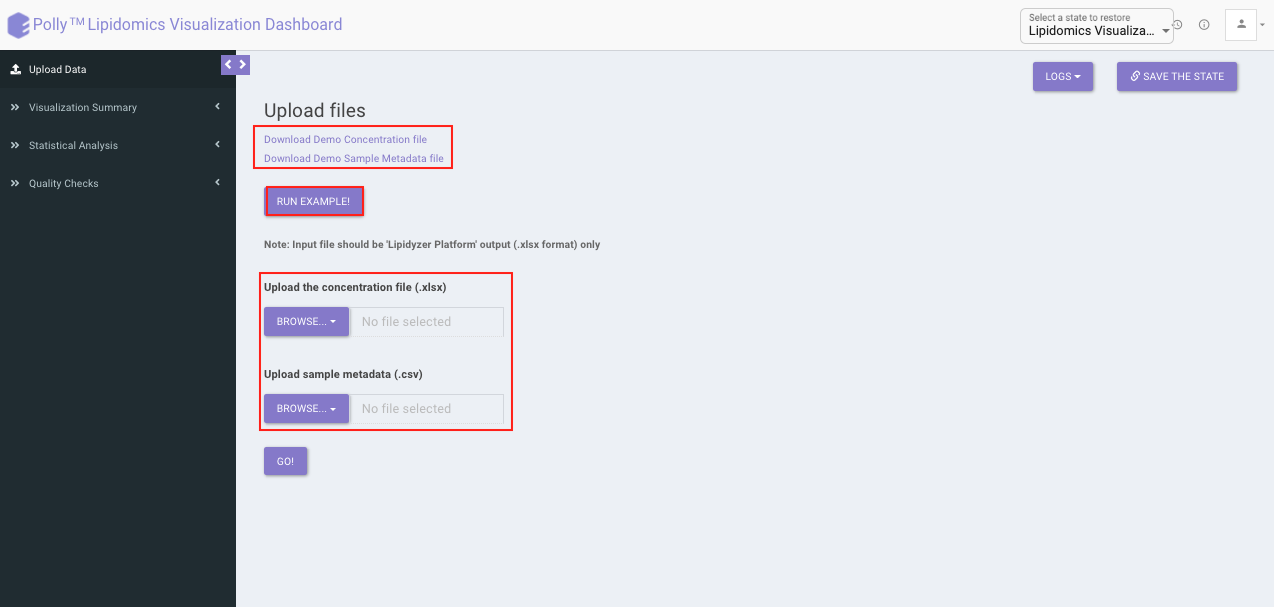
The concentration file is the data output from Lipidizer. The file should be in .xlsx format and must contain Lipids/ Fatty Acid concentrations sheet. The current version supports the .xlsx format only which comes out of SCIEX LipidyzerTM Platform as shown in Figure 2.

Metadata File
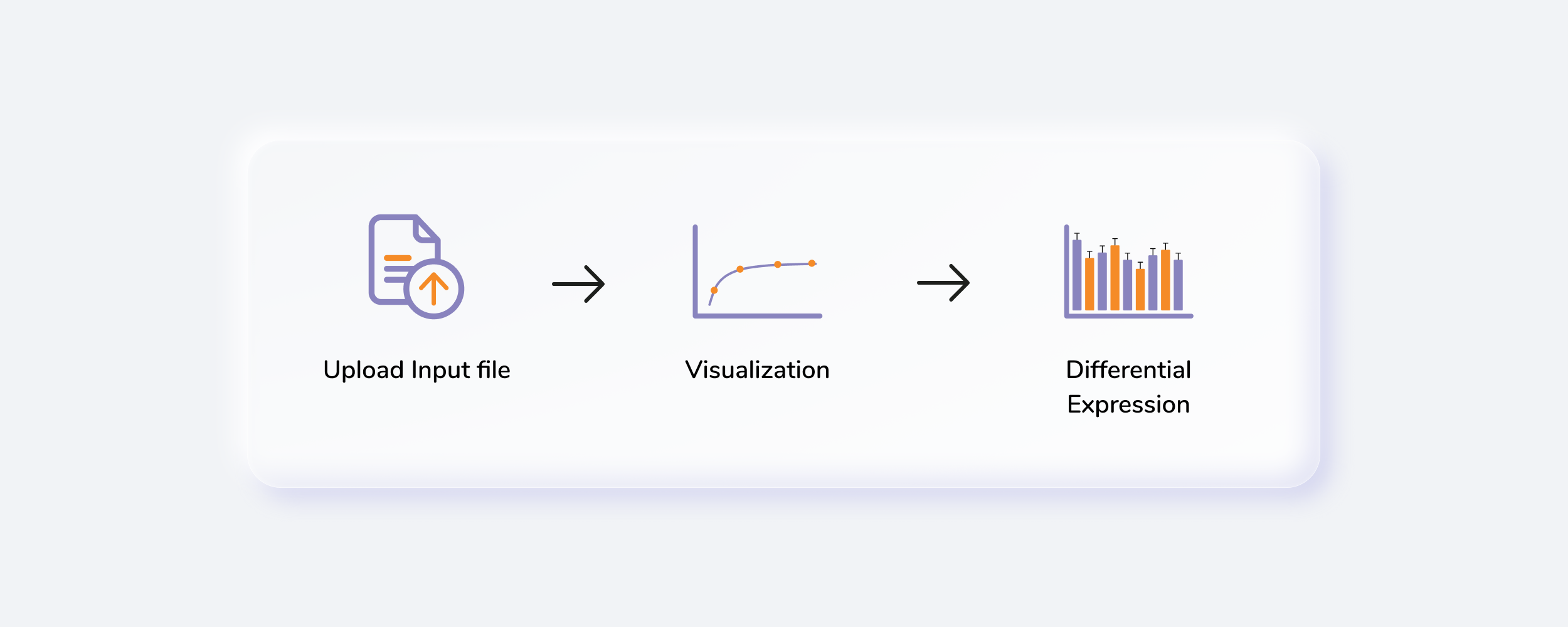
The metadata file contains two columns, Name which contains all the samples used under study and Cohort which contains the cohort information for all the samples.
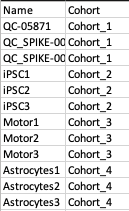
Steps involved in data processing
- Upload input files
- Visualize input data based on lipid class or species
- Perform differential expression using ANOVA or Limma
Caveats
- Lipidomics Visualization Dashboard only works with the output of SCIEX LipidyzerTM Platform.
Tutorial
Upload files
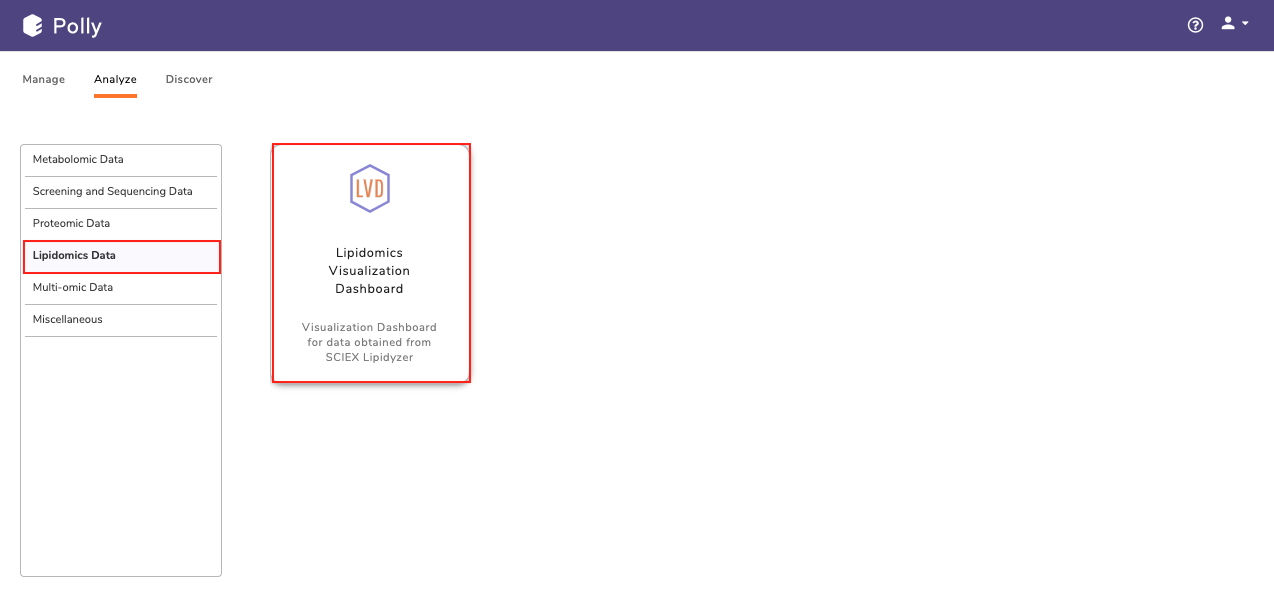
Select Lipidomics Visulalization Dashboard from the dashboard under the Lipidomics Data Tab.
Create a New Project or choose the existing one from the drop down to be redirected to Lipidomics Visualization Dashboard's upload page.
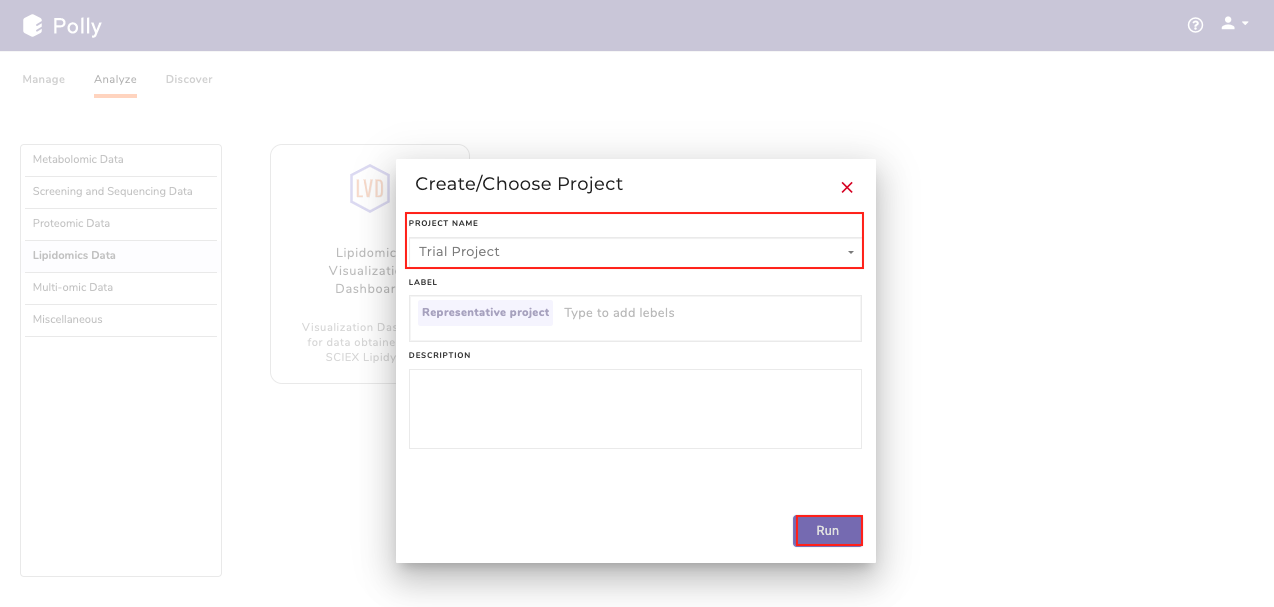
Upload interface
Upload the concentration and metadata file in the upload space and click on Go. You can also the demo data directly by clicking on Run Example.
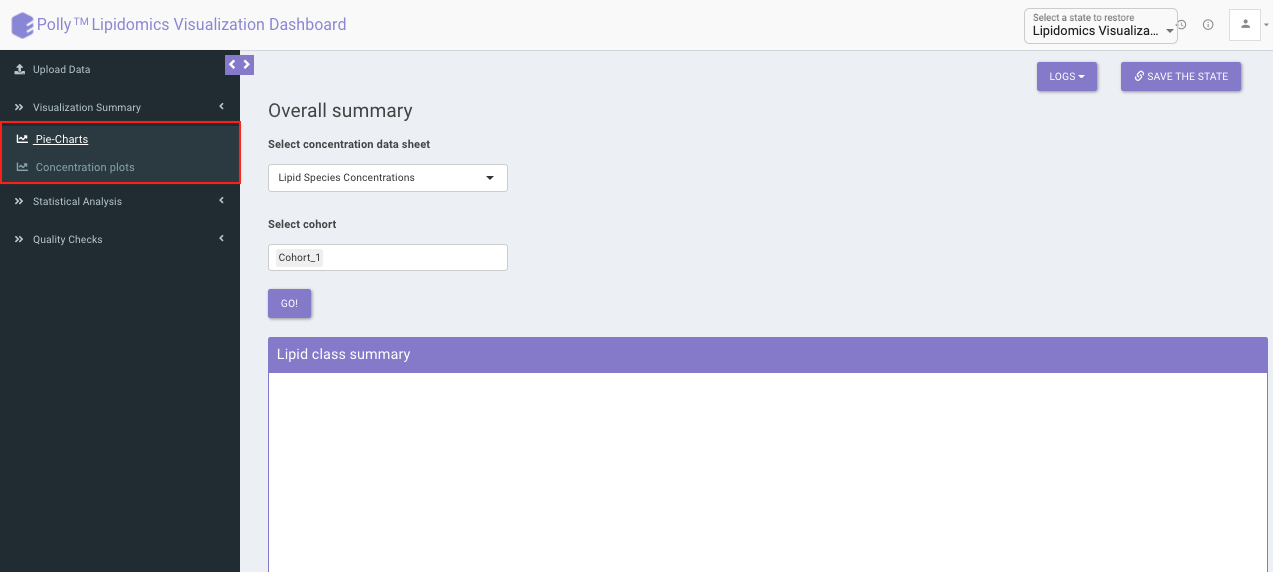
Visualization Interface
This interface contains two tabs which allows you to visualize data for concentrations across multiple cohorts using pie charts and bar plots. You can visualize summary of each lipid class as well as each lipid species.
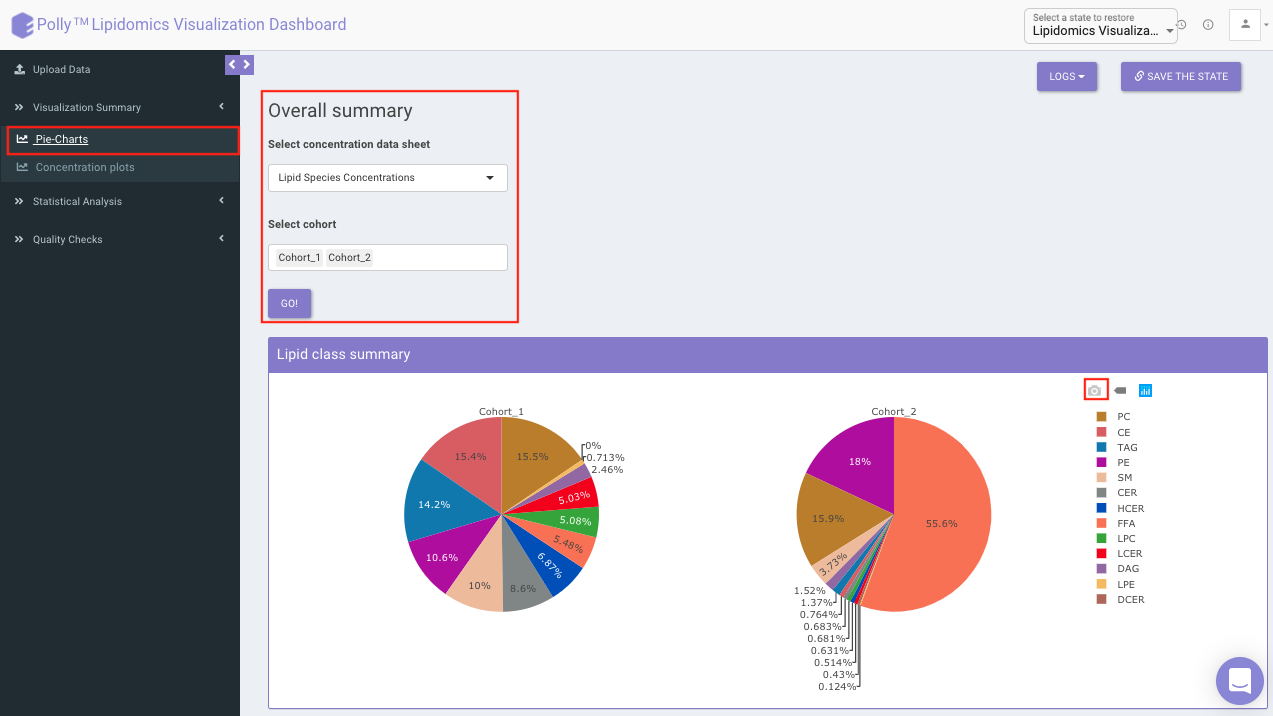
Lipid summary
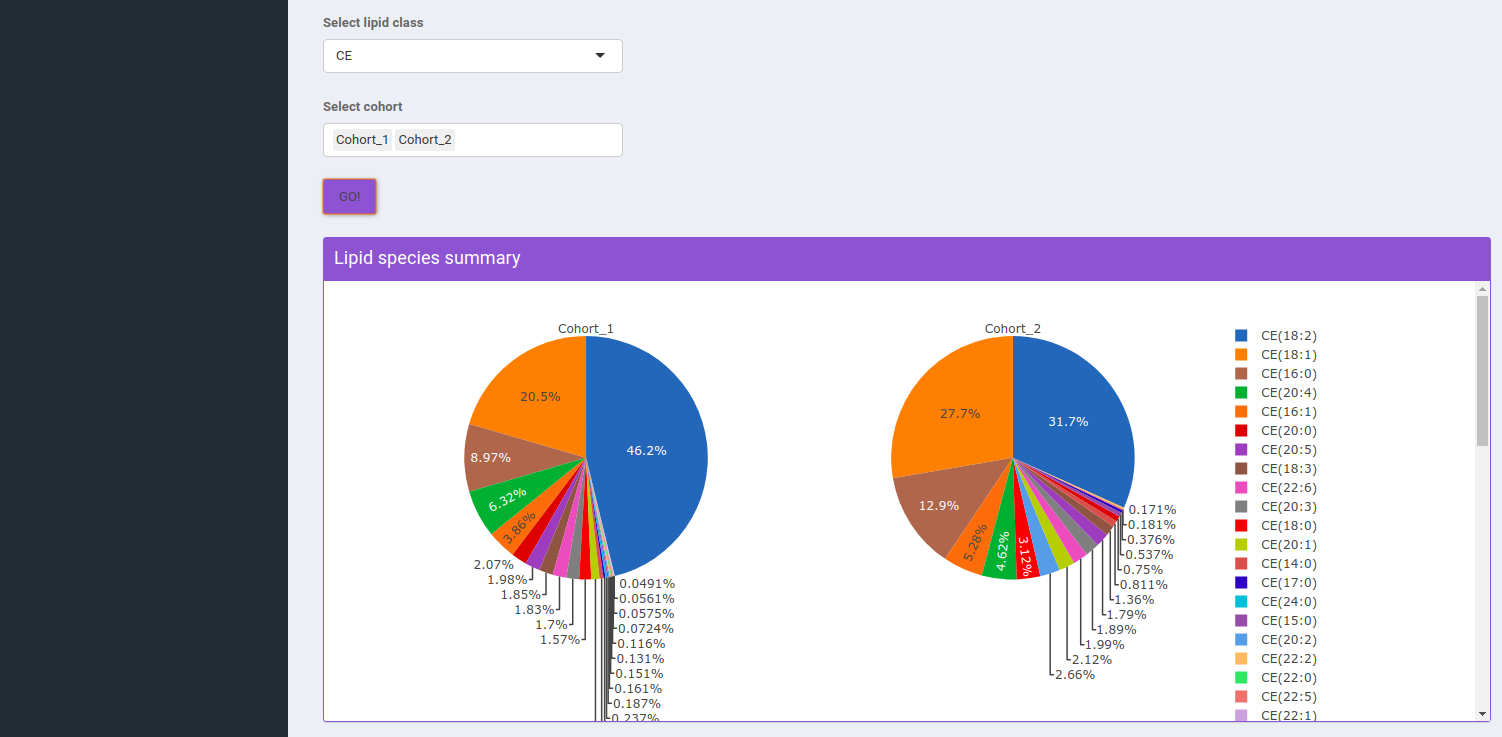
Select concentration data sheet allows you to select the concentration data sheet from the input excel file. Select Cohort allows you to select cohorts from the list of all cohorts for which the pie chart will be formed. You can select multiple cohorts to compare concentrations across cohorts a shown in Figure 8.
Select Lipid Class allows you to select the lipid class for which they can view the summary of lipid sub-class concentration percentages. Select Cohort allows you to select cohorts from the list of all cohorts for which the pie chart will be formed. You can select multiple cohorts to compare concentrations across cohorts a shown in Figure 9.
Concentration Plots
These are the bar plots for the given concentrations where the bars would be created by taking the mean value of samples within the cohort. It can be either for lipids species or lipid class based on the lipid type you select.
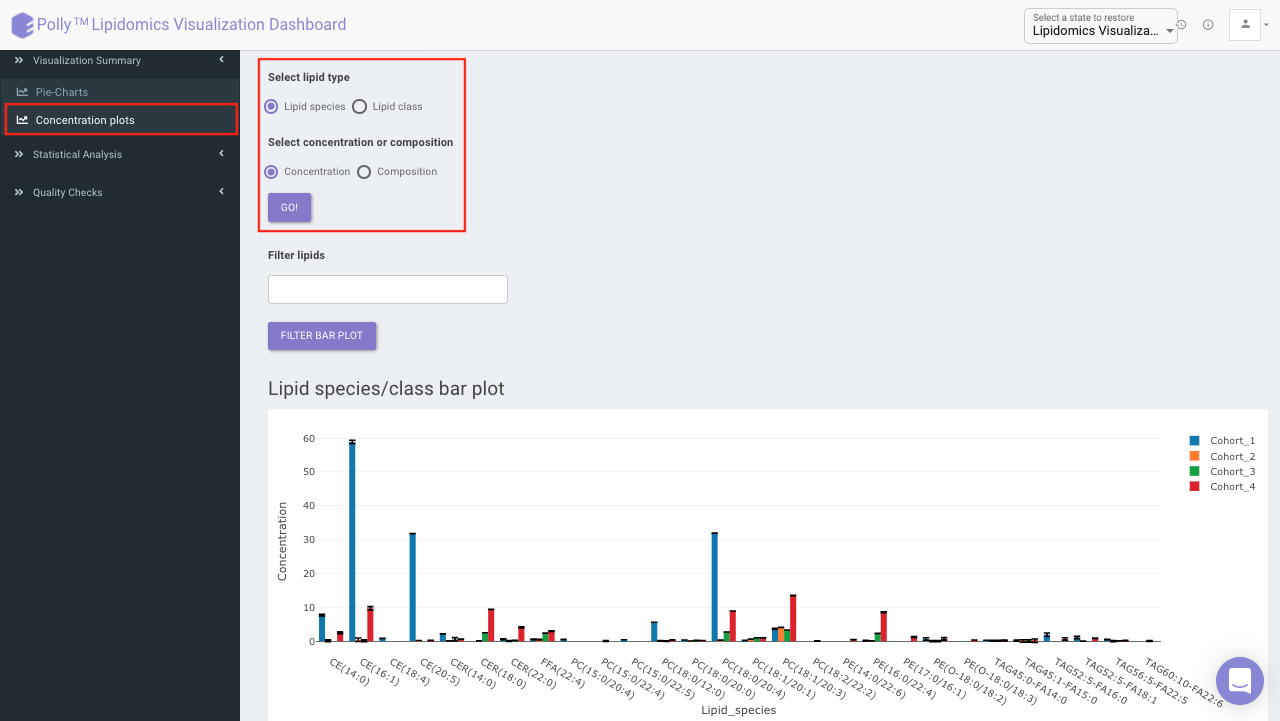
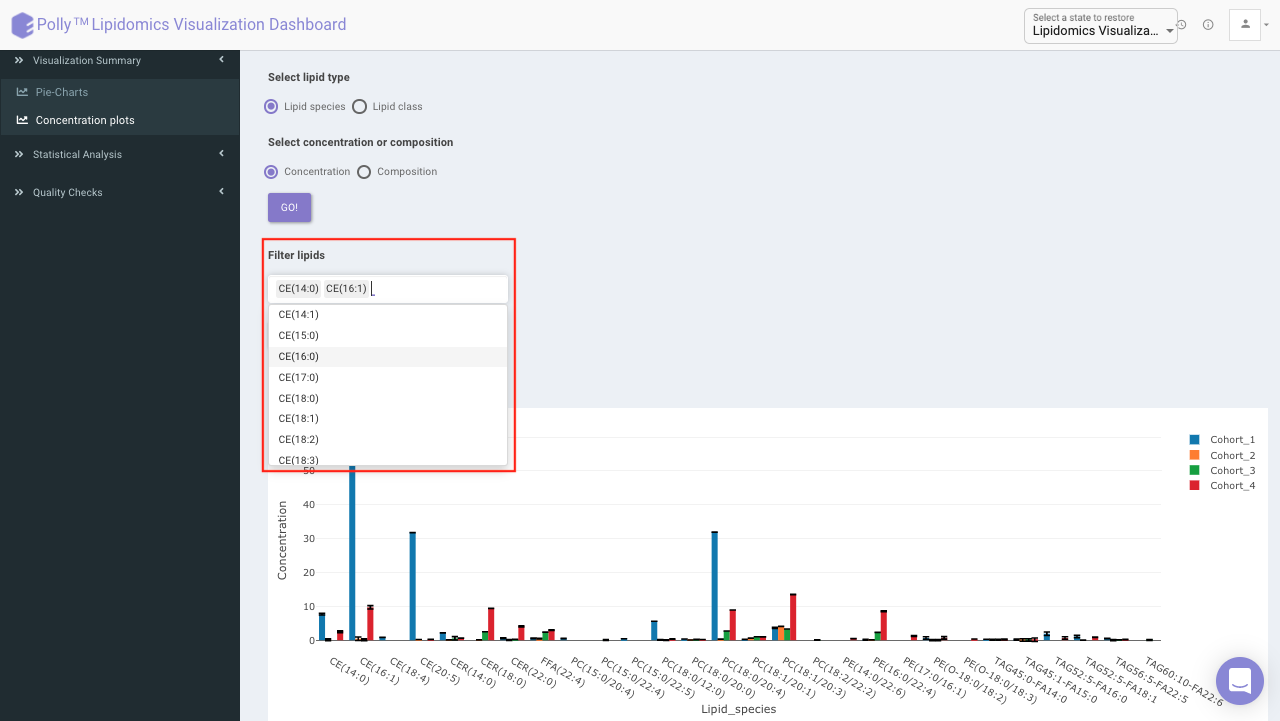
Filter lipids using the the drop down as showed in Figure 11. Multiple lipids can be selected simultaneously.
Note:
- Data selected by you will be taken as input for all the statistical analysis performed in other tabs.
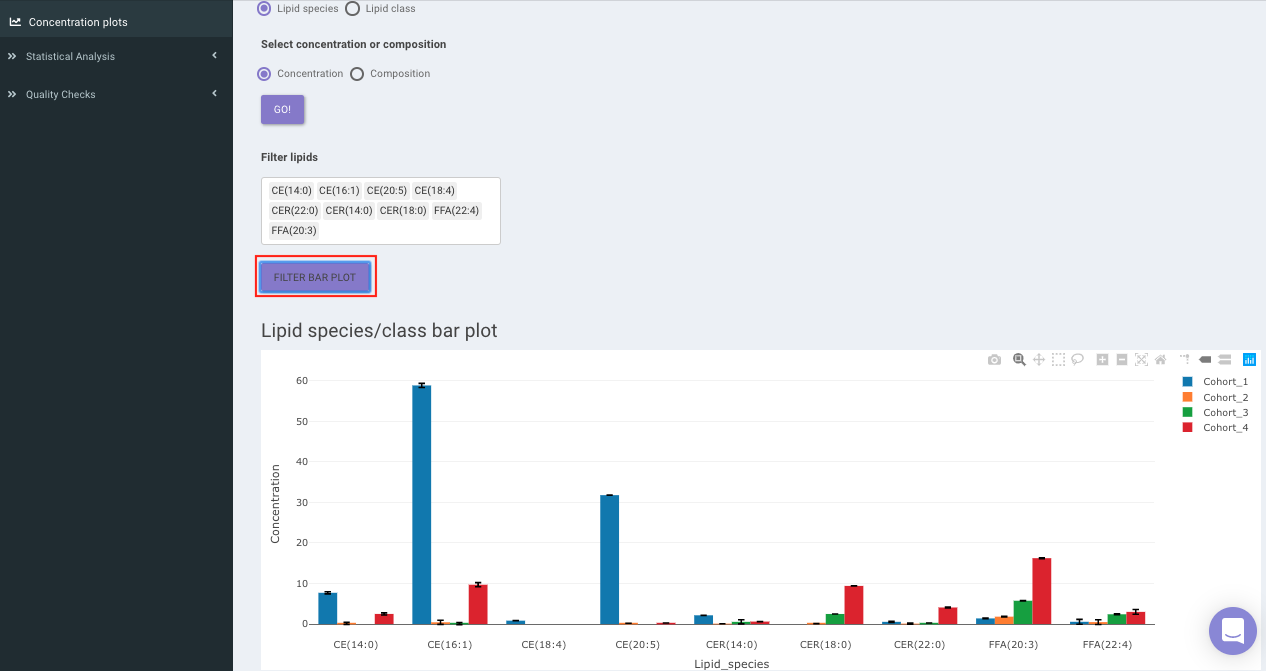
- Bar plot is based on the mean concentration values across each cohort.
Filter lipid class/species to visualize mean concentration values for those lipid classes/species only as shown in Figure 12.
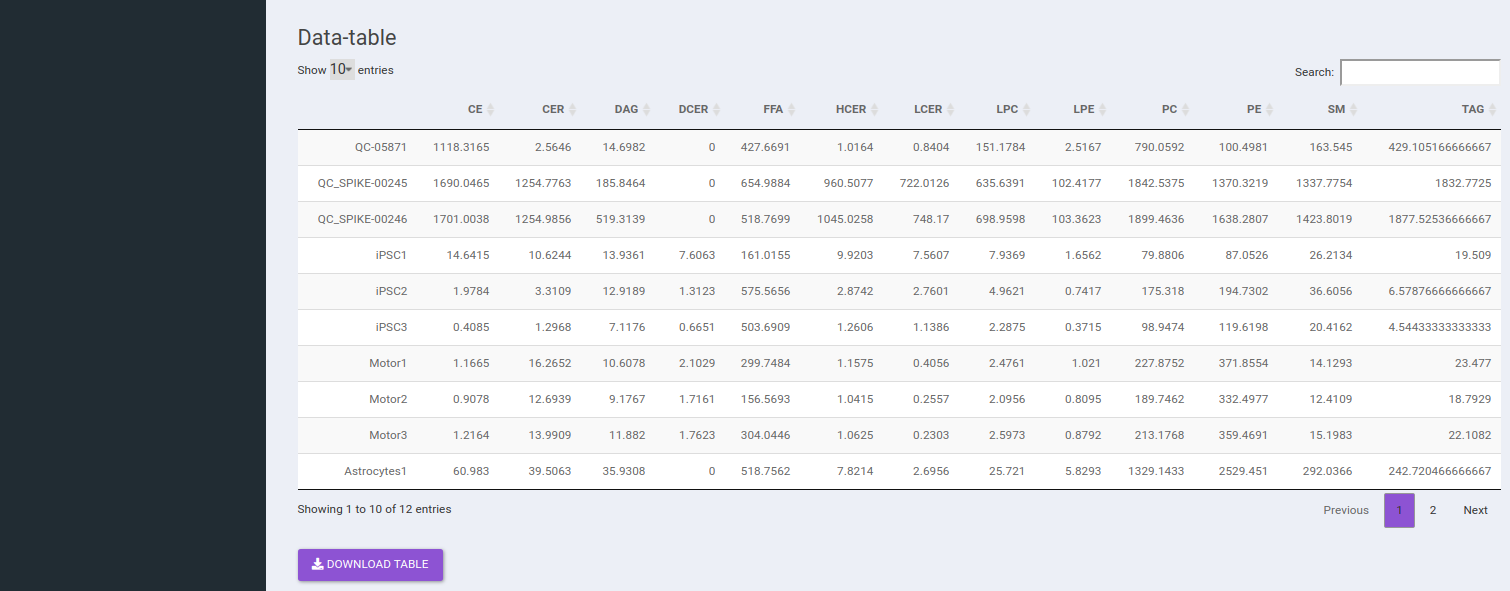
Scroll down the page to visualize the respective data-table for individual sample concentration as shown in Figure 13.
Statistical Analysis
ANOVA Test
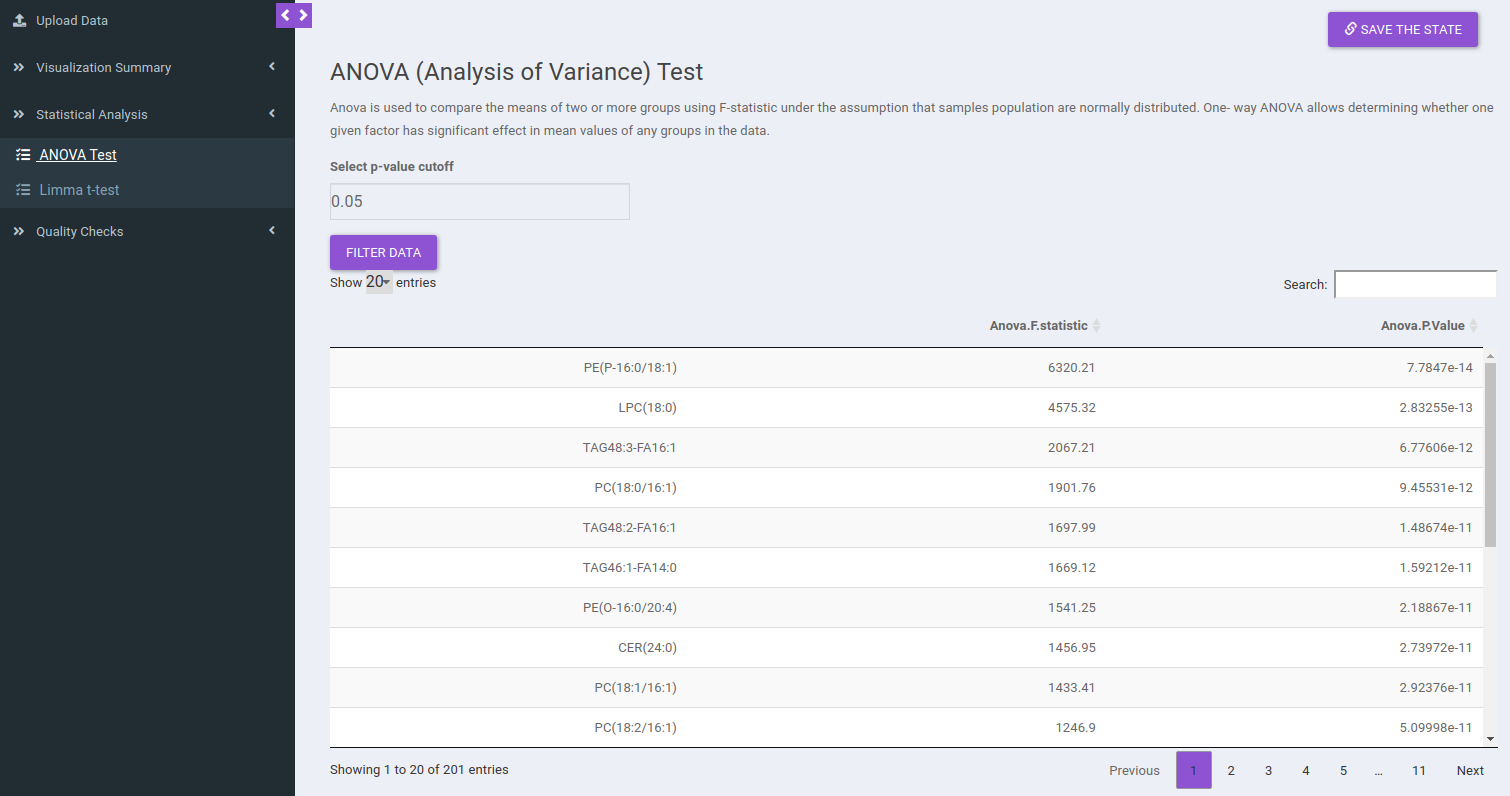
ANOVA Test is used to identify the most significant lipid species/lipid classes. Here the results will be calculated based on the data selected in the previous tab (visualization summary) and results are displayed in a tabular format without pressing any button. You can sort any column from the data table and filter the ANOVA results based on a p-value cutoff value.
Limma t-test
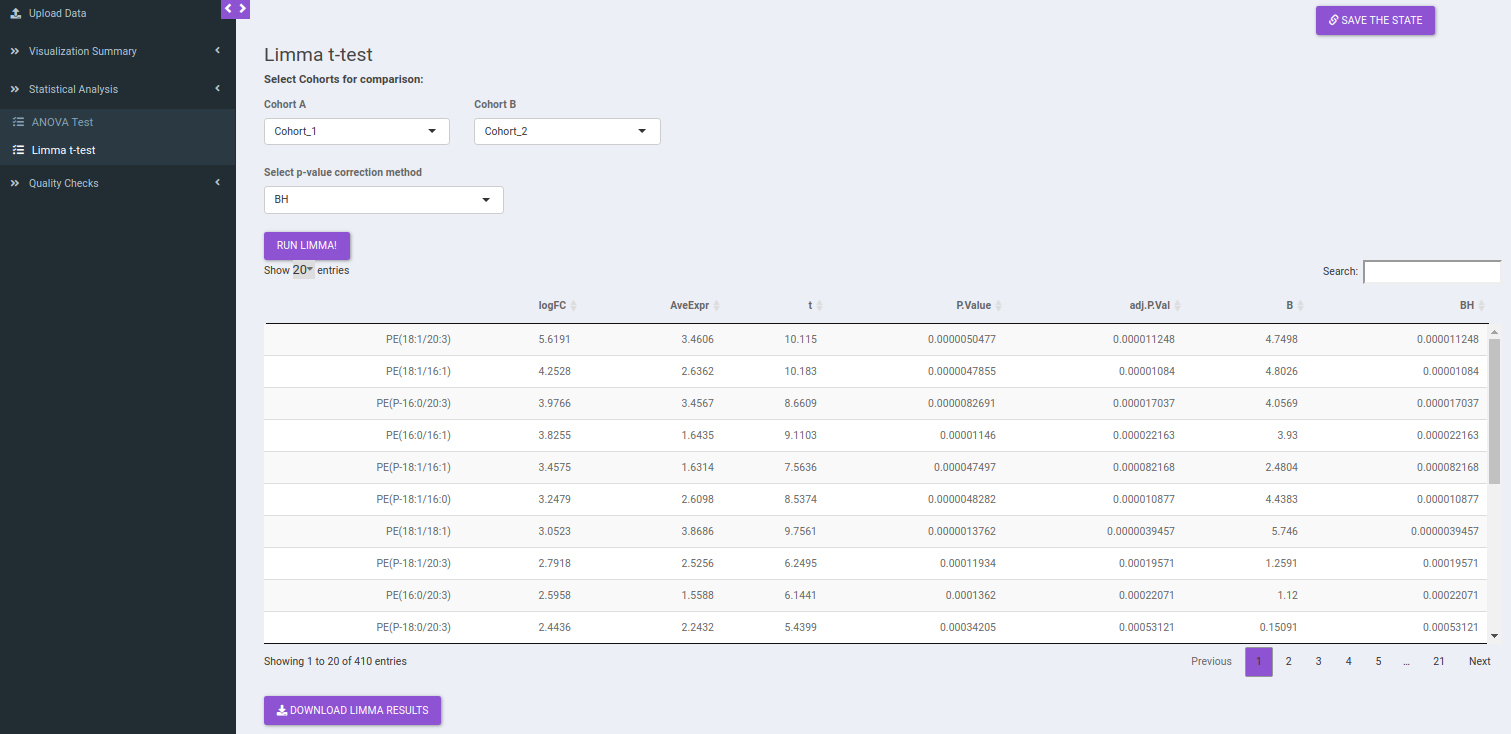
Limma t-test helps to identify significant differentially expressed lipid classes/species between two cohorts. The cohorts to be used can be selected from the drop down menu's labeled Cohort A and Cohort B. There are two methods to perform p-value correction; Benjamini-Hochberg and Bonferroni correction. By default Benjamini-Hochberg correction procedure is used. Click on Run Limma to perform differential expression and display the results in a tabular format.
The p-value and log2 fold change cutoff parameters can be changed to alter the volcano plot generated after clicking on Filter Limma Results for Volcano Plot as shown in Figure 16.

Quality Checks
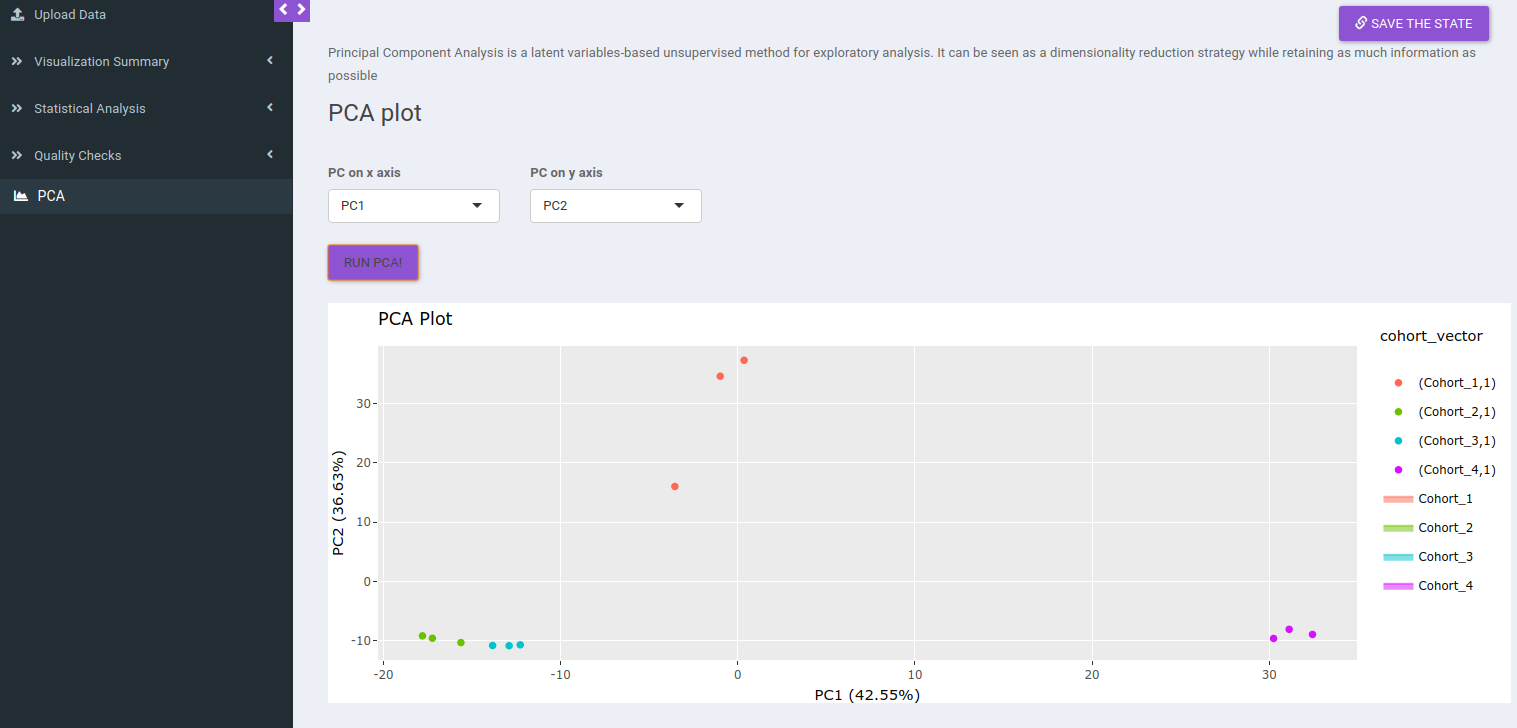
Principal component analysis (PCA) simplifies the complexity in high-dimensional data while retaining trends and patterns. It does this by transforming the data into fewer dimensions, which act as summaries of features. High-dimensional data are very common in biology and arise when multiple features, such as expression of many genes, are measured for each sample. PCA is an unsupervised learning method similar to clustering wherein it finds patterns without reference to prior knowledge about whether the samples come from different treatment groups or have phenotypic differences. PCA reduces data by geometrically projecting them onto lower dimensions called principal components (PCs), with the goal of finding the best summary of the data using a limited number of PCs. The first PC is chosen to minimize the total distance between the data and their projection onto the PC. The second (and subsequent) PCs are selected similarly, with the additional requirement that they be uncorrelated with all previous PCs.
The PCA Plot interface allows visualizing PC1 to PC11 using the drop-down menu's labeled PC on x axis and PC on y axis. Select the PCs to visualize and click on Run PCA to generate the PCA plot.